# Removing Users

Removing Users from a Project

<details>

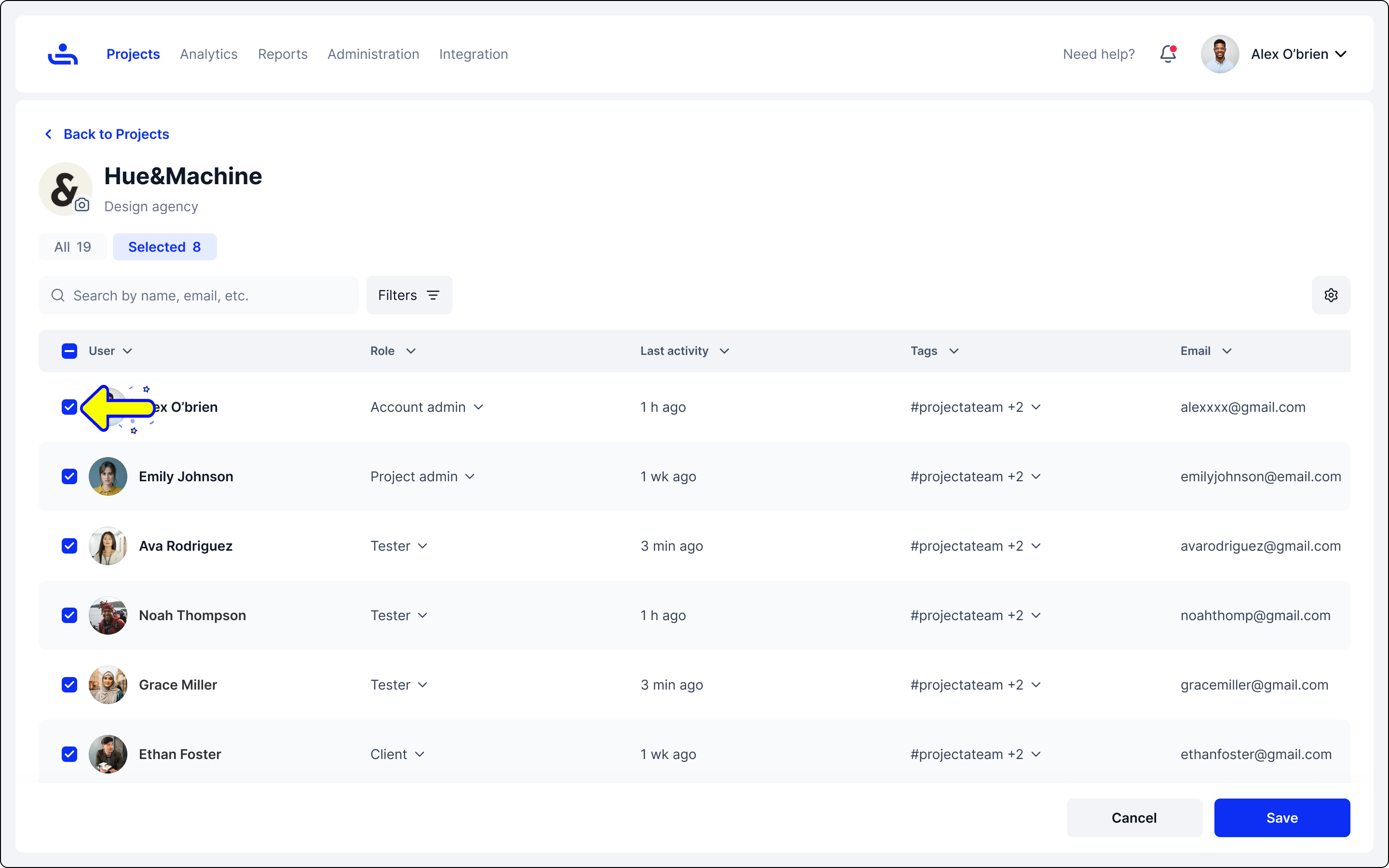
<summary>Step 1: Open edit menu</summary>

Click on the kebob icon next to a Project. Then click the "edit" option.

</details>

<figure><img src="https://1326643208-files.gitbook.io/~/files/v0/b/gitbook-x-prod.appspot.com/o/spaces%2FnpMhTPhBTwVaw7bZVBjY%2Fuploads%2Fgit-blob-3c0774215d672b879b0550d7c7ecbd35975d6ceb%2F401_Projects%2040_Project%20list%20-%20More.png?alt=media" alt=""><figcaption><p>Open the edit menu by clicking the kebob icon next to the Project your working on and then the edit button.</p></figcaption></figure>

<details>

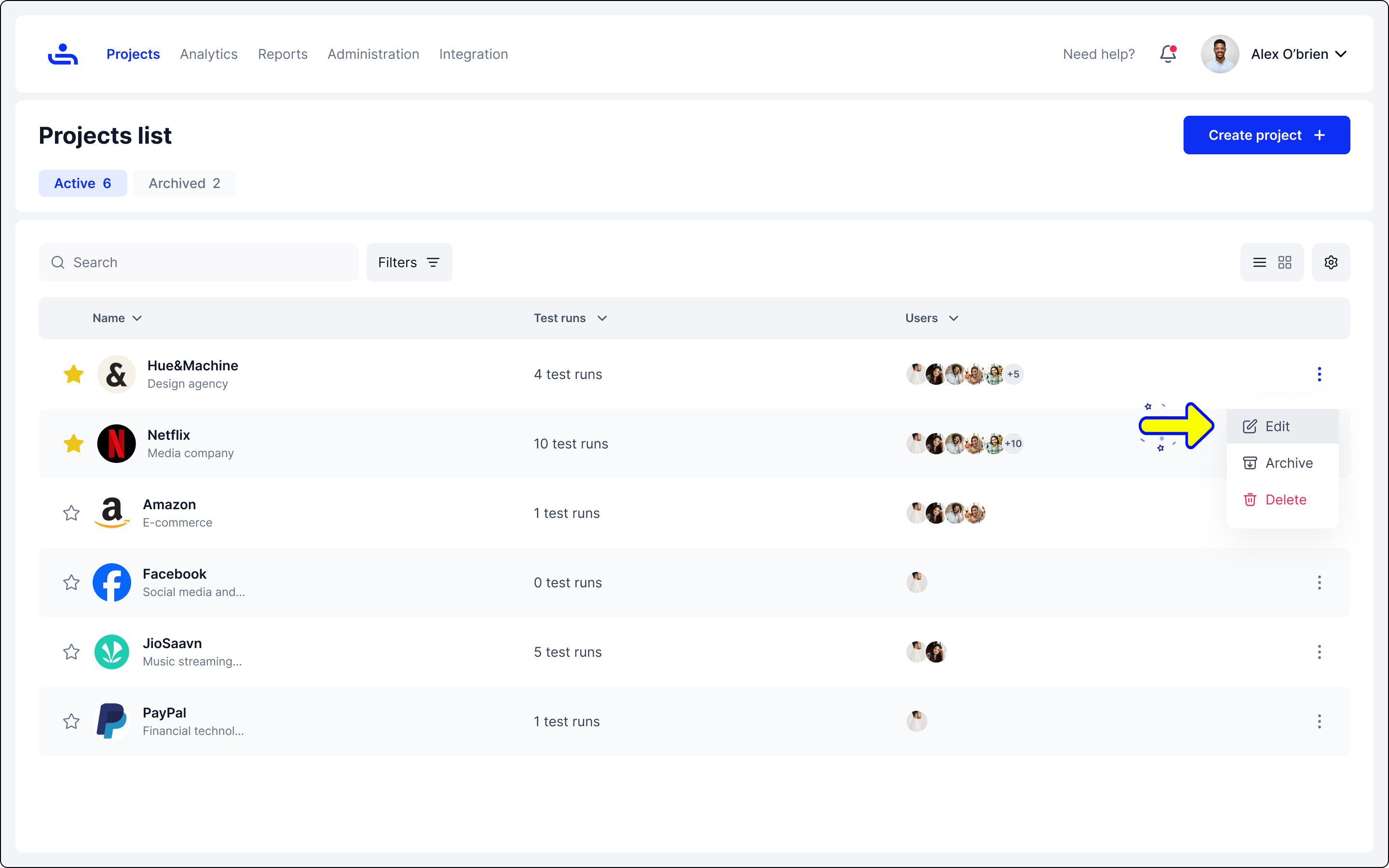
<summary>Step 2: Removing users from the Selected tab</summary>

Untick the checkbox next to each username, and users will be automatically removed from the Selected.

</details>

<figure><img src="https://1326643208-files.gitbook.io/~/files/v0/b/gitbook-x-prod.appspot.com/o/spaces%2FnpMhTPhBTwVaw7bZVBjY%2Fuploads%2Fgit-blob-b6ebe5f1dcfecc0144d4d0fb1c22a0b521ca186a%2F376_Projects%2017_Project%20list%20-%20Edit%20-%20Selected%20users_2.png?alt=media" alt=""><figcaption><p>After choosing Users, click on the remove button on the bottom right.</p></figcaption></figure>

Remember to save your changes when editing your projects. The next page will show you how to save. Click "Next"